

Introduction
A WordPress Error 404 is a common website problem that occurs when a visitor tries to open a page that the server cannot find at the requested URL. Instead of displaying the expected content, the website shows a message such as “404 Not Found,” “Page Not Found,” or “The requested URL was not found on this server.” It may appear after changing a permalink, deleting a page, installing a plugin, updating WordPress, or moving a website to another hosting provider.
A 404 error does not always mean that the entire website is broken. Sometimes, only one URL is incorrect. In other cases, a permalink configuration or server rewrite rule may prevent WordPress from displaying existing content.The good news is that many WordPress 404 errors can be resolved by checking the URL, refreshing permalink settings, clearing cached content, or correcting a redirect. This guide explains the common causes and practical solutions to help website owners troubleshoot the problem.
Table of Contents
What Is a WordPress Error 404?
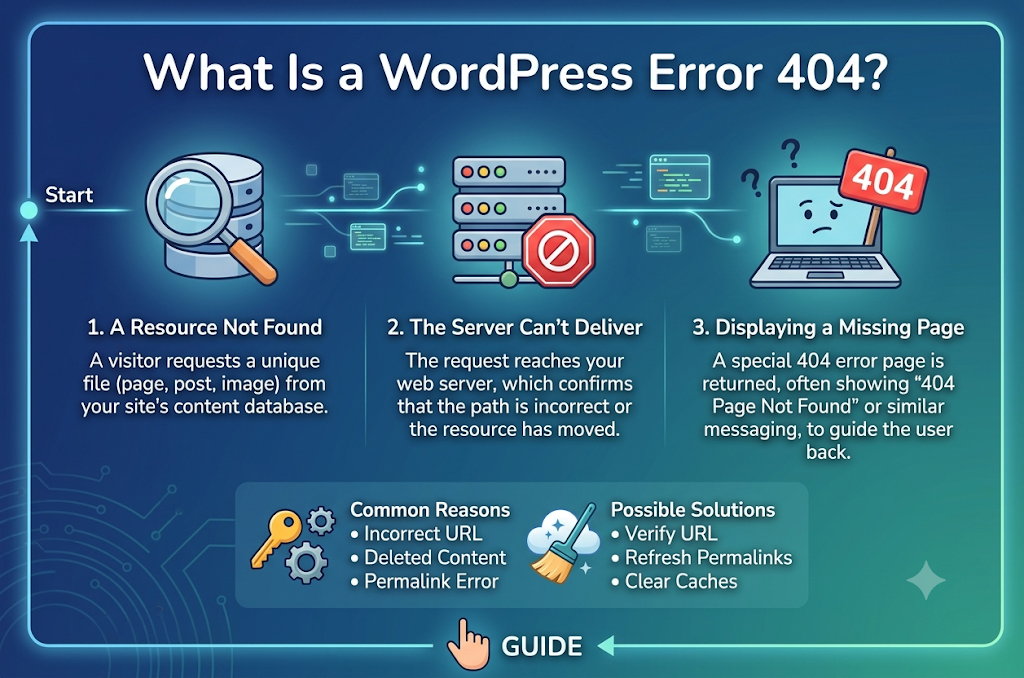
An HTTP 404 status code indicates that the requested resource could not be found. In WordPress, this usually means that the requested page or post is unavailable at the specified address.
For example, suppose a website has the following page URL:
https://example.com/wordpress-guide/
If the page has been moved, deleted, or renamed, opening the old address may display a 404 error.
WordPress websites can also show 404 errors when their permalink structure is incorrect or the server cannot process the URL as expected. It is important to distinguish a missing page from a complete website failure. If the homepage opens normally but individual posts return 404 errors, the problem may involve permalink or rewrite configuration.
Common Causes of WordPress Error 404
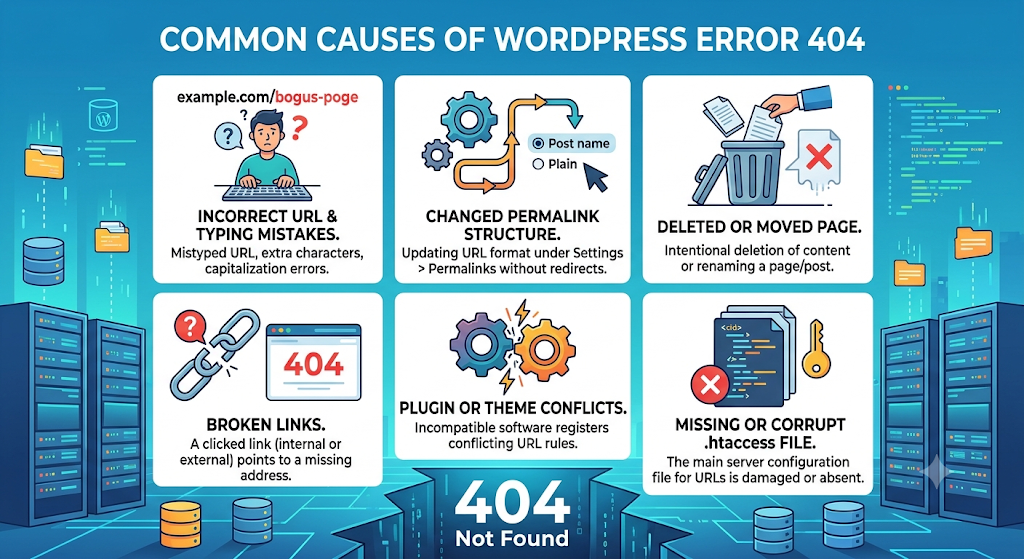
Understanding the cause makes troubleshooting easier. The following are some common reasons a WordPress website may display a 404 error.
- Incorrect URL or Typing Mistakes
A visitor may enter an incorrect web address or click a link containing a spelling mistake. Even a small difference in the URL can lead to a page-not-found error. - Changed Permalink Structure
Permalinks are the permanent URLs assigned to WordPress posts and pages. Changing a permalink structure can affect existing links, bookmarks, and search engine results.
If WordPress rewrite rules are not refreshed correctly, existing pages may become inaccessible through their normal URLs. - Deleted or Renamed Pages
When a page or post is deleted or renamed, its previous URL may no longer work. Visitors following an old bookmark or an external link may encounter a error 404.
Missing or Incorrect Rewrite Rules
WordPress uses rewrite rules to direct requests for readable URLs to the correct content. On Apache servers, these rules are commonly managed through the .htaccess file.
If the file is missing, corrupted, or incorrectly configured, WordPress may display 404 errors for multiple pages even when the content still exists. - Plugin or Theme Conflicts
Some plugins and themes register custom URLs, content types, or rewrite rules. A conflict, incomplete update, or incorrect configuration may prevent certain pages from loading. - Website Migration or Hosting Changes
Moving a website to a new server, restoring a backup, or changing hosting configurations can affect URL handling. Incorrect server settings may cause previously working links to return error 404. - Incorrect Redirects
If a redirect points to a missing page, contains a mistake, or conflicts with another redirect, visitors may reach a 404 page.
How to Fix WordPress Error 404
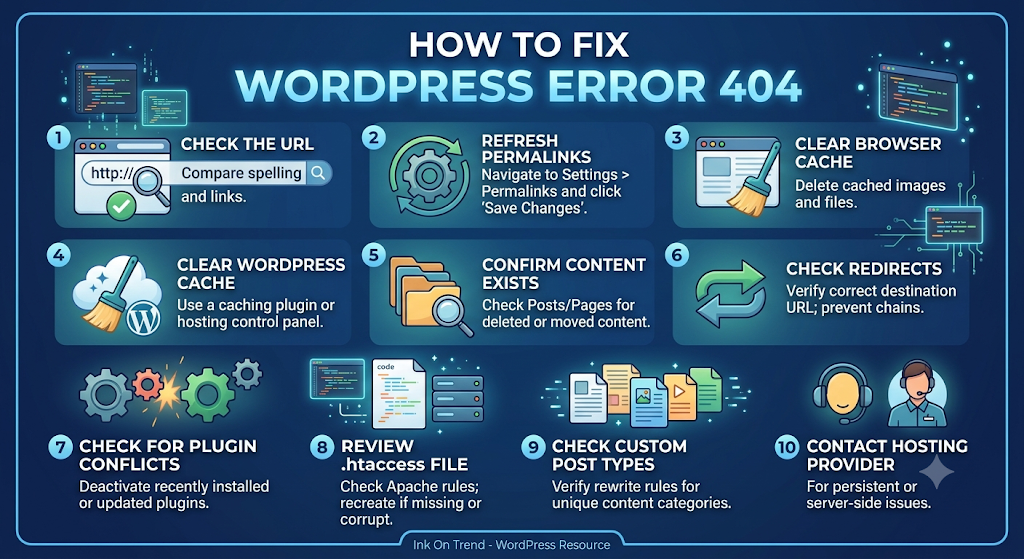
Try the following solutions in order, starting with the simplest checks. Menu labels may vary slightly depending on your WordPress version, hosting provider, and installed plugins.
Solution 1: Check the URL
First, confirm that the requested address is correct.
- Check the address bar for spelling mistakes, missing words, or extra characters.
- Compare the URL with the link to the intended page.
- Open the corrected address in your browser.
Expected result: The correct page loads if the original problem was an incorrect URL.
If the URL is correct but the error remains, continue to the next solution.
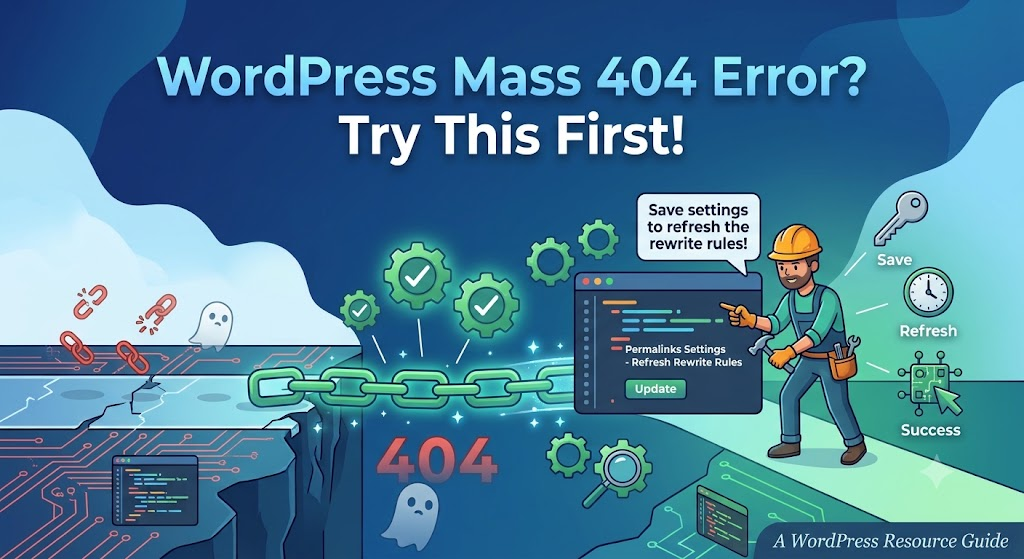
Solution 2: Refresh the Permalink Settings
Refreshing permalink settings is one of the first steps to try when existing WordPress posts or pages return 404 errors.
- Log in to your WordPress administration dashboard.
- Navigate to Settings > Permalinks.
- Review the current permalink structure.
- Keep your preferred structure selected.
- Click Save Changes at the bottom of the page, even if you have not changed any settings.
WordPress can refresh its rewrite rules when you save the permalink settings. This may resolve errors caused by outdated or missing rules.
Expected result: Existing posts and pages load correctly if the problem was related to permalink rules.
Solution 3: Clear Your Browser Cache
Your browser may retain outdated content or redirect information.
- Open your browser settings.
- Navigate to the privacy or browsing-data section.
- Select the option to clear cached images and files.
- Choose the appropriate time range.
- Clear the selected data.
- Reopen the affected WordPress URL. Expected result: The page loads if outdated browser data was contributing to the problem. Clearing the browser cache will not fix missing pages or incorrect server configurations, so continue troubleshooting if the error persists.
Solution 4: Clear Your WordPress or Hosting Cache
Caching plugins and hosting services may store older versions of website content or redirects. If a URL has recently changed, cached information can sometimes cause confusing results.
- Log in to your WordPress dashboard.
- Identify the caching plugin, if one is installed.
- Open its settings or administration menu.
- If your hosting provider offers server-side caching, clear that cache using its supported controls.
- Reopen the affected page.
If you use a content delivery network (CDN), check whether it also provides a cache-purge option.
Expected result: The latest page or URL configuration appears after the relevant cache has been cleared. Only clear caches you have access to, and follow your hosting provider’s instructions
Solution 5: Check Whether the Page or Post Exists
A 404 error may be correct if the requested content was deleted or its URL was changed.
- Open the WordPress dashboard.
- Navigate to Posts > All Posts or Pages > All Pages.
- Search for the affected content by its title.
- If it exists, open it for editing and check its permalink or slug.
- If it is in the Trash, restore it if appropriate.
- Update the link if the content has moved to a new URL.
If the old URL has been replaced by an equivalent page, consider setting up a permanent redirect. If the content was intentionally deleted and no suitable replacement exists, leaving the URL as a error 404 may be appropriate.
Solution 6: Check Redirect Settings
Redirects can help visitors reach the correct page after a URL changes. However, incorrect redirect rules may send visitors to unavailable destinations.
- Review your redirect plugin or hosting redirect settings.
- Find the rule associated with the affected URL.
- Confirm that the destination URL is correct.
- Check for unnecessary redirect chains or conflicting rules.
- Correct or remove the problematic rule.
- Test the old and new URLs in a browser.
Back up the relevant configuration before making changes. If you are unsure which redirect is responsible, ask your website administrator or hosting provider for assistance.
Solution 7: Check for Plugin Conflicts
If the error affects specific pages or began after installing or updating a plugin, a plugin conflict may be involved. Before testing, create a backup and use a staging site if one is available. Disabling plugins on a live website can affect forms, security, caching, and other functions.
- Open Plugins > Installed Plugins in the dashboard.
- Review recently installed or updated plugins.
- If possible, test by deactivating one suspected plugin on a staging site.
- Check whether the affected URL loads.
- If the problem disappears, investigate that plugin’s settings or compatibility.
- Reactivate plugins as appropriate and repeat testing one at a time.
If you cannot access the dashboard, a hosting file manager or FTP client may provide another way to investigate, but changing plugin files requires care.
Solution 8: Review the .htaccess File
On many Apache-hosted WordPress websites, the .htaccess file contains rewrite rules used for readable permalinks. Missing or incorrect rules can cause error 404.
This step is more advanced and should be attempted only if you have access to your hosting files.
- Back up your website and database.
- Open your hosting control panel or FTP client.
- Navigate to the WordPress installation’s root directory.
- Locate the .htaccess file, if present.
- Download a backup before editing or renaming it.
- Check the file for missing or conflicting WordPress rewrite rules.
- If necessary, regenerate the rules through Settings > Permalinks.
Do not blindly replace the entire file. Other plugins or hosting configurations may use additional rules, and overwriting them could affect your website. If you are unfamiliar with server configuration, contact your hosting provider.
For Nginx servers, URL rewriting is generally configured in the server configuration rather than a .htaccess file. Your hosting provider may need to review those settings.
Solution 9: Check Custom Post Types and URL Slugs
Websites may use custom post types for portfolios, products, events, or other content. Incorrect rewrite rules or conflicting slugs can cause these pages to return 404 errors.
- Identify the affected content type.
- Check that the post or page exists and is published.
- Review its URL slug.
- Check whether another page or content type uses a conflicting slug.
- If a plugin registers the content type, review its configuration.
- Refresh permalink settings and test the URL again.
If the issue persists, the plugin or theme developer may need to review the custom rewrite rules.
Solution 10: Contact Your Hosting Provider
If none of the previous solutions works, the issue may be related to the server or hosting configuration.
Contact your hosting provider if:
- Every post returns a error 404 while the homepage works.
- Permalink settings do not resolve the problem.
- Rewrite rules are missing or cannot be updated.
- The issue started after a migration or server change.
- You cannot access the relevant server configuration files.
Provide the affected URLs, the time the issue started, any recent changes, and the troubleshooting steps you have already tried. This information can help the support team identify the cause more quickly.
How to Prevent WordPress error 404
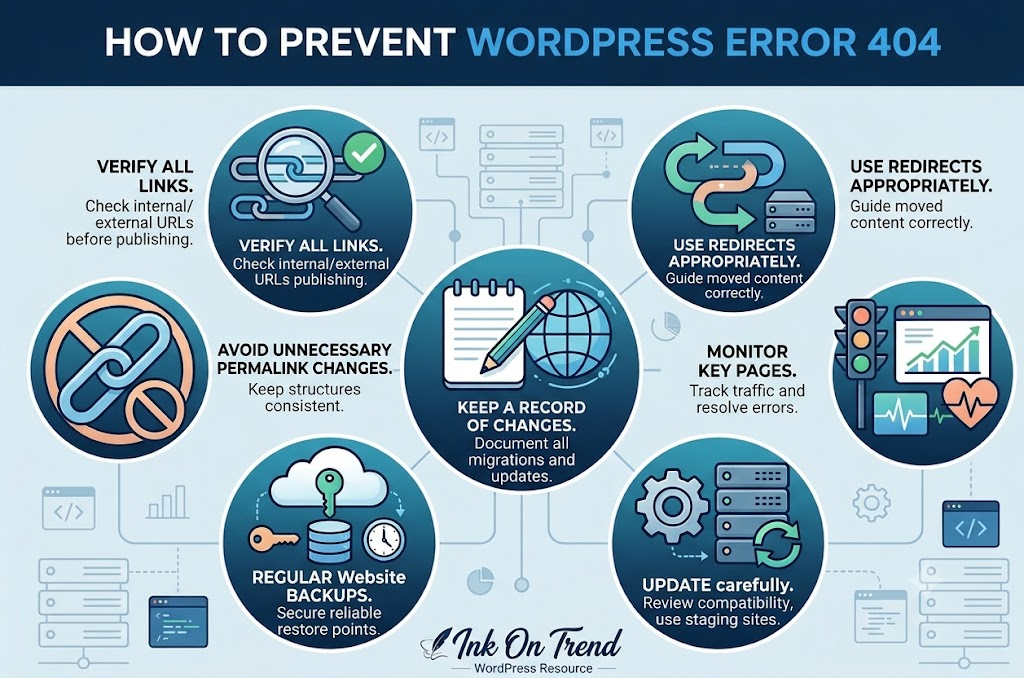
Although not every error 404 can be prevented, these practices can reduce avoidable problems.
- Check links before publishing: Verify that internal and external links point to the intended pages.
- Avoid unnecessary permalink changes: Changing a published URL can break existing links unless appropriate redirects are configured.
- Back up your website: Keep reliable backups before updating plugins, themes, or server settings.
- Update carefully: Review compatibility and test important changes on a staging website when possible.
- Monitor important pages: Check key links periodically and investigate unexpected errors.
- Use redirects when appropriate: Redirect old URLs to relevant replacement content rather than sending visitors to unrelated pages.
- Keep a record of changes: Document URL changes, migrations, and configuration updates to simplify future troubleshooting.
Conclusion
WordPress Error 404 can occur because of an incorrect URL, deleted content, changed permalinks, caching issues, redirect mistakes, plugin conflicts, or server rewrite problems. The correct solution depends on whether the problem affects one page or many pages across the website. Start by checking the URL and confirming that the content exists. Next, refresh the permalink settings and clear relevant caches. If the error continues, investigate redirects, plugins, and server configuration carefully.
Always back up your website before making advanced changes. If the issue appears to be server-related or you are unfamiliar with configuration files, contact your hosting provider. A systematic troubleshooting approach can help restore access to existing content and provide visitors with a better website experience.
You Can See Our Another Article On Technology
FAQs
1. What does Error 404 mean in WordPress?
Error 404 means the requested page or resource could not be found at the specified URL. The cause may be a missing page, incorrect link, or URL configuration problem.
2. Why does my WordPress homepage work but other pages show error 404?
error 404 can happen when permalink rewrite rules are missing or incorrect. Saving the existing settings under Settings > Permalinks is a useful first step.
3. Will refreshing permalinks delete my posts?
No. Saving the permalink settings refreshes URL rewrite rules; it does not normally delete posts or pages. However, changing the permalink structure can change the URLs visitors use to access content.
4. Can a plugin cause WordPress error 404 ?
Yes. A plugin that manages redirects, custom post types, or URL rewriting can contribute to the problem. Test suspected plugins carefully, preferably on a staging website.
5. Should I redirect every error 404 URL?
No. Redirect URLs to relevant replacement content when a suitable destination exists. If a page was intentionally removed and has no replacement, returning a error 404 status can be appropriate.
6. Does a WordPress error 404 affect SEO?
Yes. If important pages consistently return 404 errors, visitors and search engines may not be able to access them. Fix broken URLs or redirect them to relevant replacement pages when appropriate.
7. How do I find error 404 on my WordPress website?
You can use Google Search Console to review indexing issues and reported page-not-found errors. Website analytics and broken-link monitoring tools can also help identify URLs that need attention.
8. Can clearing the cache fix a WordPress 404 error?
Yes, in some cases. Outdated browser, WordPress plugin, hosting, or CDN caches may contribute to the issue. However, clearing the cache will not fix a genuinely missing page or incorrect server configuration.
9. Why do WordPress pages show 404 errors after migration?
A website migration can change permalink settings, server rewrite rules, or hosting configurations. Check the permalink settings and confirm that the new server correctly handles WordPress URLs.
10. What is the difference between a 404 error and a 500 error in WordPress?
A 404 error means the requested resource could not be found. A 500 Internal Server Error indicates that the server encountered an unexpected problem and could not complete the request. The troubleshooting steps for these errors are different.


