

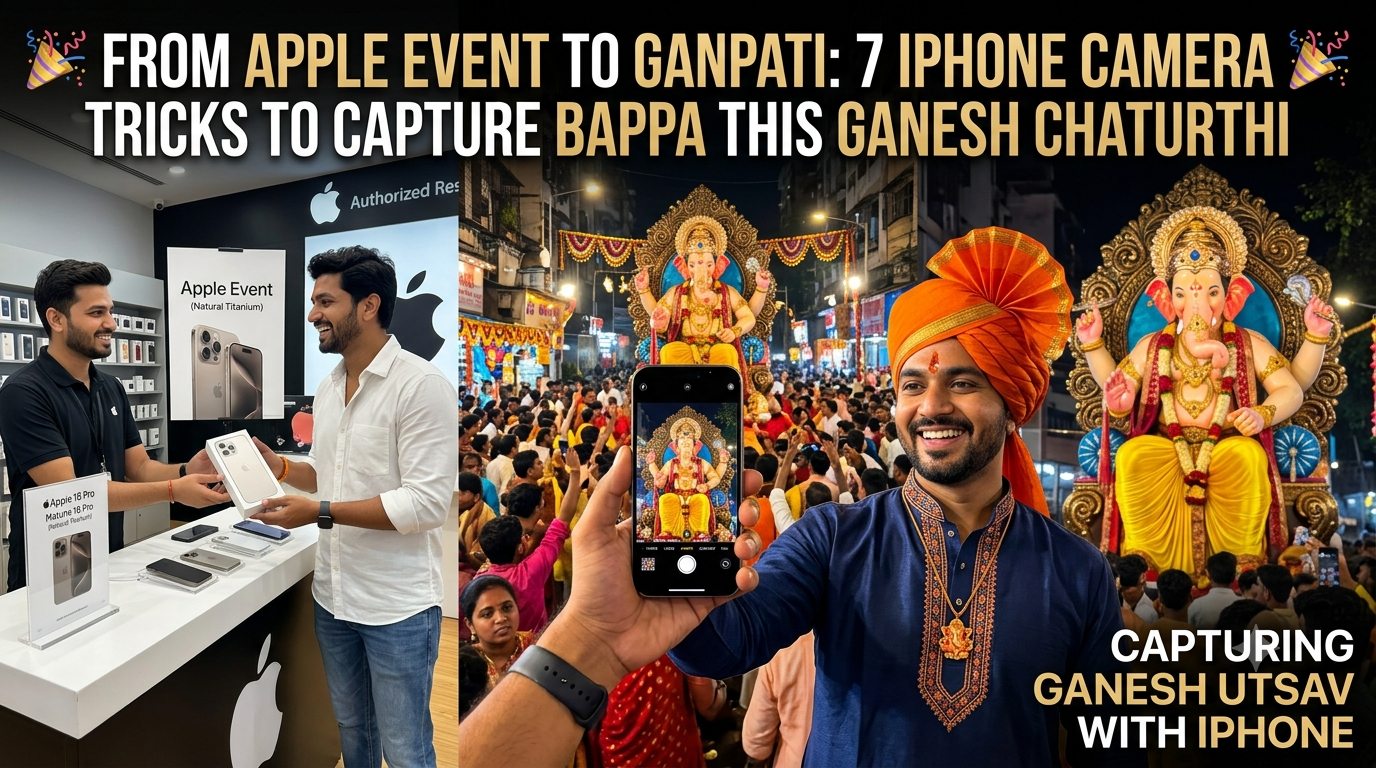
Ganesh Chaturthi is a festival filled with colour, devotion, music & countless moments worth remembering. While the celebrations may last 10 days, the memories stay with us for years — and photographs are often the best way to preserve them.
You don’t need a professional DSLR to capture those memories anymore. Your iPhone is already in your pocket, & with the right iPhone camera tricks, it can help you capture everything from the intricate details of a Ganpati idol to the energy of an Aarti or the chaos and emotion of a Visarjan procession.
Apple’s latest camera and software upgrades have added even more capabilities to the iPhone. From the A20 Pro chip and variable-aperture 48MP Fusion camera on the iPhone 18 Pro Max to Camera Control and the upgraded 48MP Ultra Wide camera on the iPhone 16 Pro Max, Apple’s recent hardware gives smartphone photographers plenty of tools to work with.
Pair those features with a few simple photography techniques, and you can turn everyday festival moments into memorable photographs.
Here are 7 iPhone camera tricks to help you capture Bappa in all His glory this Ganesh Chaturthi.
Table of Contents
Clean Your Lens and Use Camera Control for Quick Shots
Before worrying about composition or camera settings, start with something simple: clean your lens.
Your iPhone camera picks up fingerprints, dust and oil surprisingly easily, especially when you’re constantly taking it in and out of your pocket. A quick wipe with a soft cloth can make a noticeable difference, helping your photos look sharper and clearer. If you’re in a hurry, even a clean T-shirt can work in a pinch.
This becomes particularly useful when you’re moving through crowded pandals, artisan workshops or Visarjan processions. Moments can disappear in seconds, so being able to open the iPhone camera quickly is a real advantage.
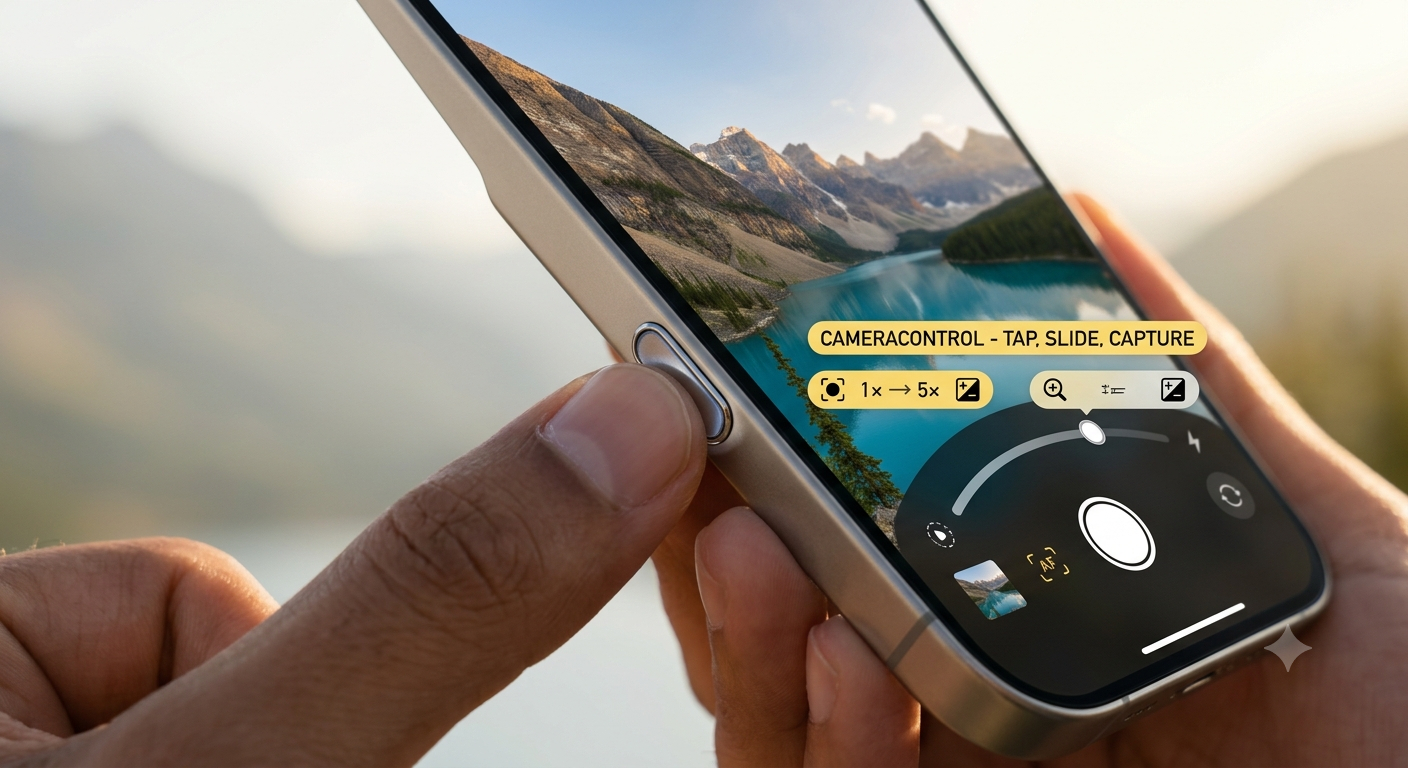
On supported iPhone models, the dedicated Camera Control button lets you launch the iPhone Camera app quickly. A double-click opens the iPhone camera without requiring you to unlock the phone and hunt for the app.
iPhone Camera Control can also be used to switch lenses, adjust zoom, change Photographic Styles and access other iPhone camera features using simple presses and touch gestures.
Festive etiquette tip: If you’re photographing inside a Ganpati workshop or a private mandal, ask for permission first. And if you’re visiting a temple or other place of worship, remember to wear footwear that’s easy to remove.
Get Close to Bappa’s Eyes and Intricate Details with Macro
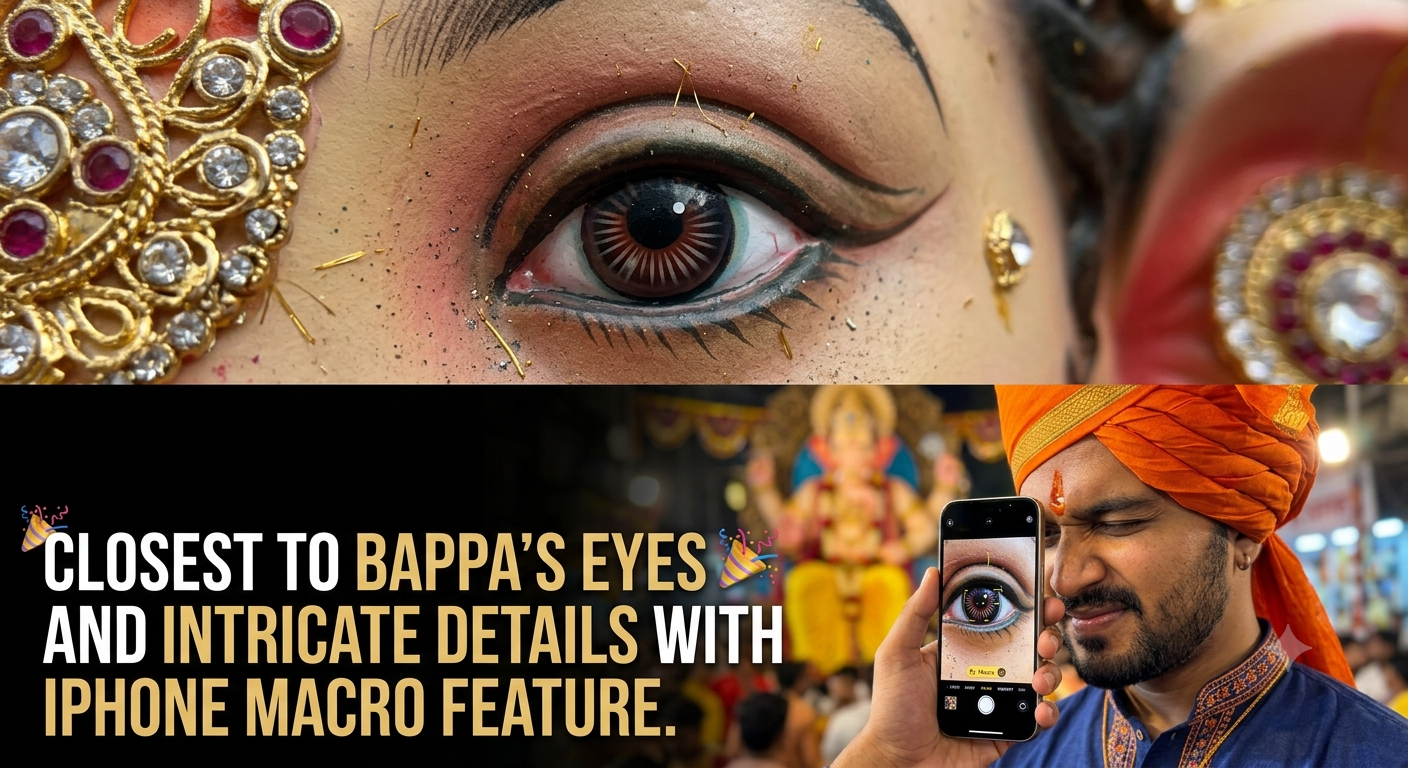
One of the most beautiful parts of creating a Ganpati idol is painting the eyes. Artisans spend hours perfecting this tiny but incredibly important detail, and a close-up photograph can really showcase their craftsmanship.
Instead of photographing the entire idol from the same distance every time, get closer and look for details that might otherwise go unnoticed — Bappa’s eyes, the texture of the trunk, jewellery, flowers, ornaments or the intricate patterns painted on the idol.
On supported iPhone models such as the iPhone 16 Pro Max, moving very close to a subject can automatically activate Macro Photography. The upgraded 48MP Ultra Wide iPhone camera is designed to capture close-up details with impressive clarity.
For the best result, don’t just zoom in from far away. Physically move closer when the surroundings allow it. A distance of around one to two feet works well for larger details, while Macro mode can take you much closer for tiny elements.
For extremely close shots, a supported iPhone camera can switch to Macro mode when you’re within around 2 cm of the subject.
Try photographing a hand-painted iris, a tiny bead on a necklace, gold leaf on the crown or even the texture of the idol’s surface. These small details can tell a much bigger story.
Make the Most of Low Light with Night Mode
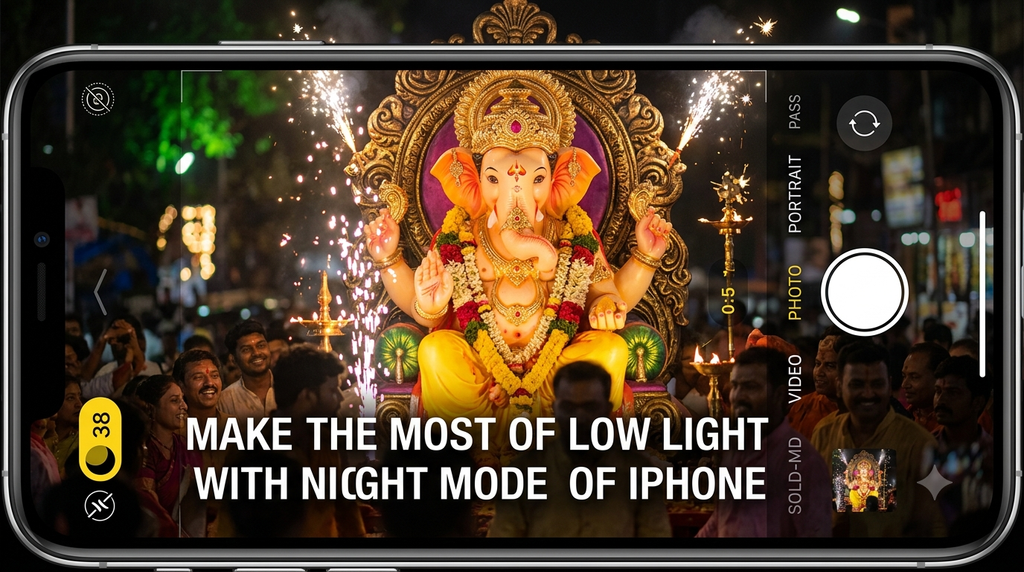
Pandal photography can be tricky. One moment you’re dealing with beautiful warm lamps, and the next you’re surrounded by colourful LEDs, deep shadows and uneven lighting.
Before taking the shot, take a second to look at where the light is coming from. If possible, move around until the idol is better illuminated. Even a small change in your position can dramatically improve the photograph.
In darker surroundings, Night mode automatically turns on when the iPhone detects that there’s not enough light. You’ll know it’s active when the Night mode icon at the top of the screen turns yellow. The number beside it indicates how long the phone plans to capture the image.
You can also increase the capture time manually:
- Tap the arrow above the viewfinder to open the iPhone camera controls.
- Tap the Night mode button.
- Move the slider above the shutter button towards Max.
A longer exposure allows the iPhone camera to gather more light, but there’s one important catch: don’t move.
Try to keep the iPhone steady for a second or two after pressing the shutter. Even though you’ve heard the shutter sound, the phone may still be processing the image.
For the sharpest results, rest the iPhone on a stable surface or use a tripod whenever possible.
On supported iPhones, the iPhone camera can also display crosshairs when it detects movement during a Night mode shot. Keeping those crosshairs aligned can help you hold the phone steady.
And if you’re using a supported Pro model, Night mode Portrait can be useful for capturing atmospheric low-light portraits with background blur.
Cut Through the Crowd with Portrait Mode
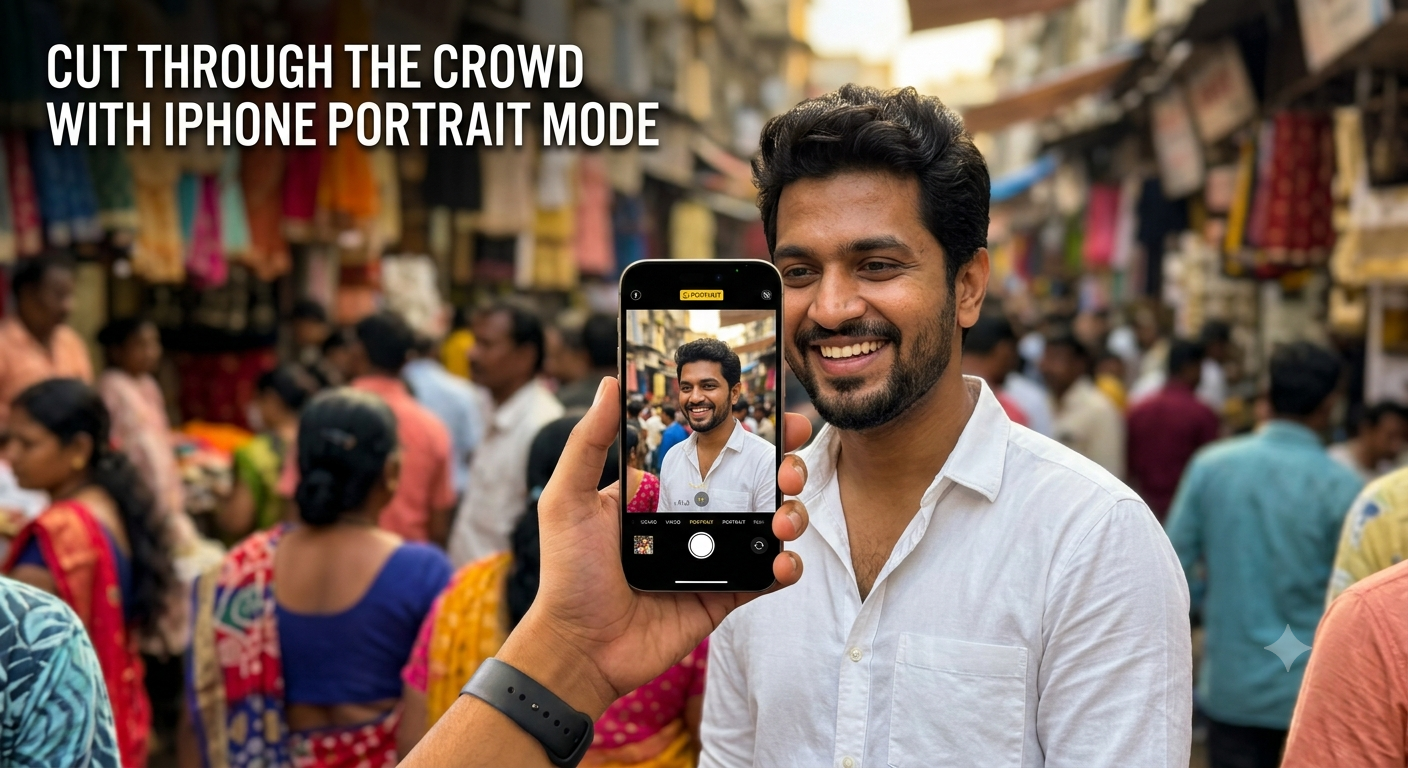
A packed mandal can make it surprisingly difficult to get a clean photograph of Bappa. There may be people, wires, water bottles, decorations, and all sorts of other distractions competing for attention.
Before pressing the shutter, take a quick look around the frame. Sometimes taking one step to the side or changing your angle is enough to remove a distracting object.
Portrait mode is another useful way to make the deity stand out. It creates a shallow depth-of-field effect, keeping your main subject sharp while softening the background.
On some iPhone models, Portrait mode has specific requirements. For example, on the rear cameras of devices such as the iPhone XR, second-generation iPhone SE and iPhone 16e, Portrait mode requires the iPhone camera to detect a human face.
You can also experiment with Portrait Lighting effects, including:
- Studio Light: Brightens facial features for a cleaner look.
- Contour Light: Creates stronger highlights and shadows for a more dramatic feel.
- Stage Light / Stage Light Mono: Places the subject against a dark background.
- High-Key Light Mono: Creates a monochrome subject against a bright background.
These effects can be previewed while taking the photograph or applied afterwards.
Want to change the amount of background blur later? Open the image in Photos, tap Edit, select Depth Control, and adjust the slider until you get the look you want.
Think Like a Photographer with ProRAW and Better Composition
Finally, don’t forget that a great photograph isn’t just about iPhone camera specifications. Composition still matters.
Start by turning on the 3×3 grid in iPhone camera settings and use the Rule of Thirds as a simple guide. Instead of always placing Bappa directly in the centre, try positioning the idol along one of the grid lines or at an intersection.
If you’re using a supported iPhone, Apple ProRAW can give you more flexibility when editing. It combines RAW sensor data with Apple’s computational photography, giving you greater control over elements such as exposure, colour and white balance during post-processing.
To enable ProRAW:
- Open Settings.
- Tap Camera and then Formats.
- Turn on ProRAW & Resolution Control.
- Choose your preferred ProRAW or resolution setting.
- In the Camera app, tap the RAW option before taking the photograph.
Keep in mind that ProRAW files contain significantly more image information and are therefore much larger than standard photographs, so keep an eye on your available storage.
Your Ganpati Photography Cheat Sheet
| Trick for iPhone Camera Users | What to Do | Best For |
|---|---|---|
| 1. Clean Lens & Camera Control | Wipe the lens and use iPhone Camera Control for quick access | Fast-moving processions and crowded pandals |
| 2. Macro Photography | Move close to capture tiny details | Eyes, jewellery, flowers and ornaments |
| 3. Night Mode | Extend exposure and keep the phone steady | Dark pandals and evening Visarjan |
| 4. Portrait Mode | Use background blur and Portrait Lighting | Separating Bappa from busy backgrounds |
| 5. Cinematic Mode | Use focus shifts to tell a story | Aarti, prayers and processions |
| 6. Photographic Styles | Adjust Tone and Warmth | Colourful pandals and natural skin tones |
| 7. ProRAW & Composition | Use grid lines, creative angles and ProRAW | Detailed photographs that need extensive editing |
Capture the Moments, Not Just the Idol
The best Ganesh Chaturthi photographs aren’t necessarily the ones with the most expensive iPhone camera or the fanciest settings. They’re the ones that capture a feeling — the concentration on an artisan’s face, a child’s excitement at seeing Bappa, the glow of diyas during Aarti, or the emotion of a Visarjan procession.
So before you head out, clean your lens, charge your iPhone, and make some storage for a good click through your iPhone Camera
FAQs
Q. How to tell the story with iPhone camera cinematic mode?
A. For video, try Cinematic mode when you want a more film-like look. It creates a depth-of-field effect while automatically shifting focus between subjects.
For example, you could start with a devotee praying in the foreground and then shift the focus to Bappa in the background.
Cinematic mode uses on-screen indicators to show what’s currently in focus:
A gray frame indicates another detected subject that’s currently out of focus.
A yellow frame indicates the current subject in focus.
Q. Can an iPhone capture the feelings of the Ganesh Chaturthi festival?
A. Yes, the iPhone camera has the power to capture even the shortest of moments. The recent iPhone event showcased the power iPhone has in depicting the feelings and emotions of the users.
Q. Can I get iPhone free?
A. In the recent iPhone event, no such claims were made.


[…] Ganpati Bappa is often associated with wisdom, intelligence, new beginnings, and overcoming obstacles. These qualities can serve as powerful reminders when we are dealing with career uncertainty. […]